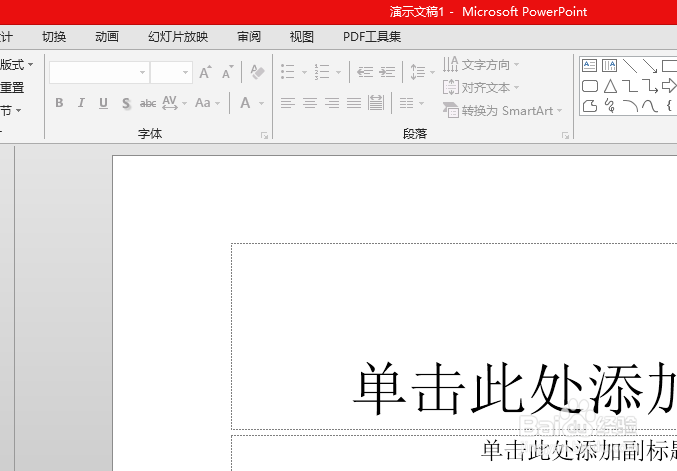
1、打开一个的PowerPoint 2013的界面中
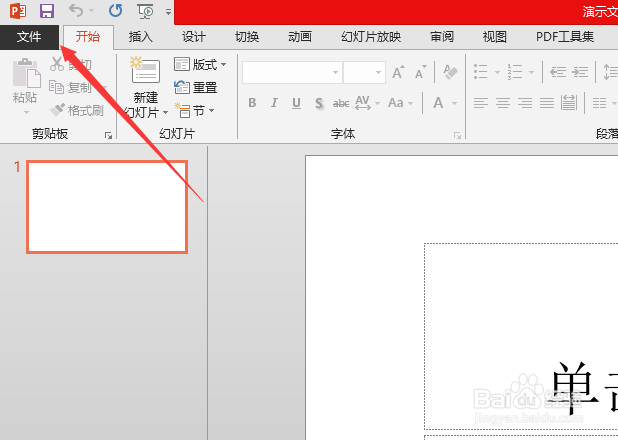
2、点击左上角中的 文件
3、点击了文件 选项之后,弹出了下拉菜单选中为 选项

4、进入到了选项界面中,点击左侧中的 高级 选项

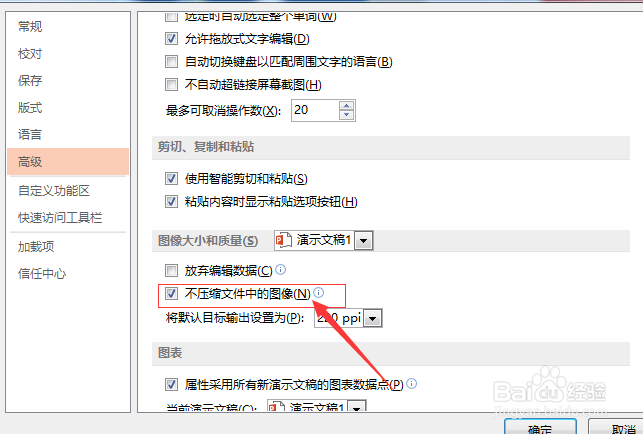
5、进入到了高级界面中,去掉 不压缩文件中的图像 勾选选项
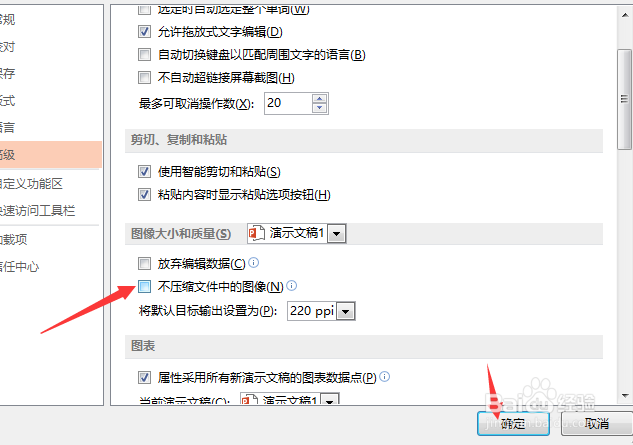
6、去掉 不压缩文件中的图像 勾选选项之后,点击 确定
1、点击左上角中的 文件
选中为 选项
点击左侧中的 高级 选项
去掉 不压缩文件中的图像 勾选选项
时间:2026-04-26 02:15:44
1、打开一个的PowerPoint 2013的界面中
2、点击左上角中的 文件
3、点击了文件 选项之后,弹出了下拉菜单选中为 选项
4、进入到了选项界面中,点击左侧中的 高级 选项
5、进入到了高级界面中,去掉 不压缩文件中的图像 勾选选项
6、去掉 不压缩文件中的图像 勾选选项之后,点击 确定
1、点击左上角中的 文件
选中为 选项
点击左侧中的 高级 选项
去掉 不压缩文件中的图像 勾选选项
