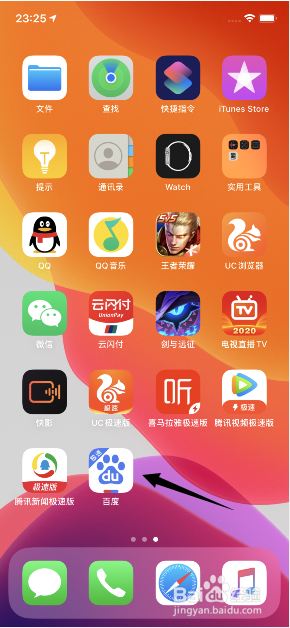
1、先打开手机,点击百度极速版。
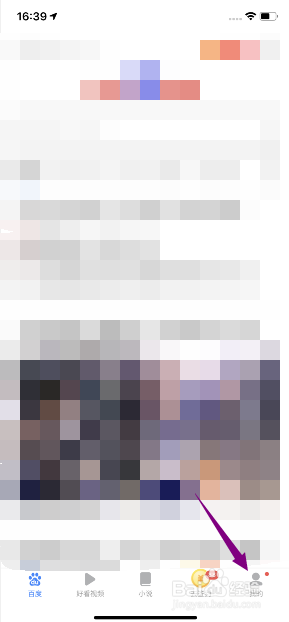
2、然后点击我的。
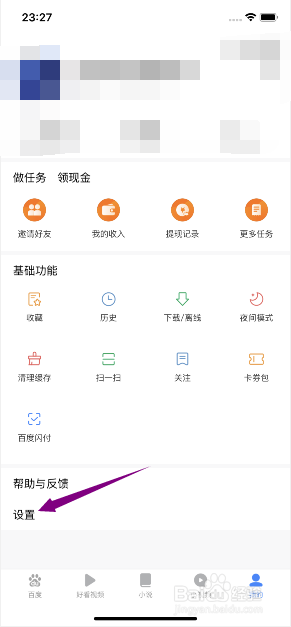
3、之后点击设置。
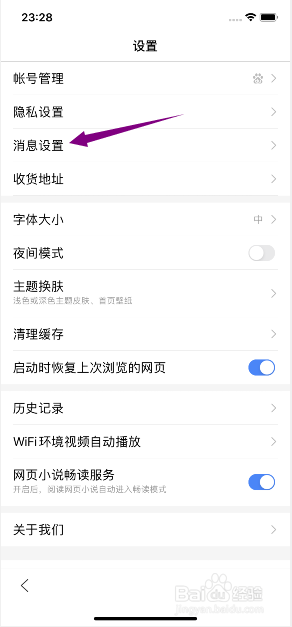
4、然后点击消息设置。
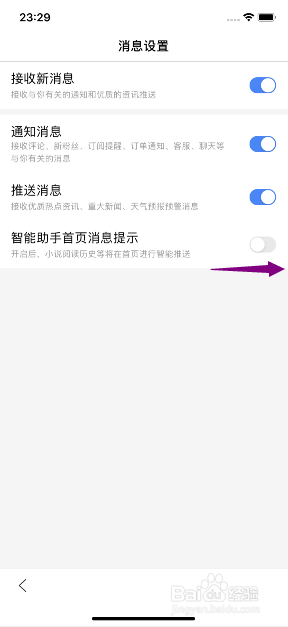
5、之后将智能助手首页消息提示的滑动按钮向右滑动。
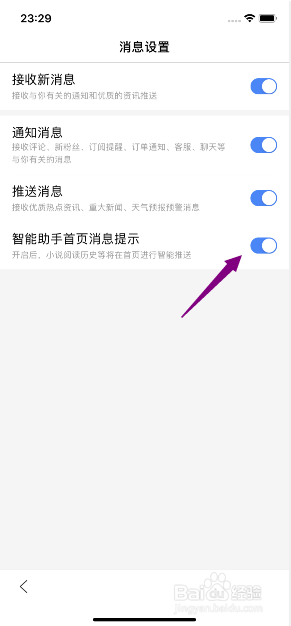
6、滑动完成后如图所示,这样便开启了智能助手首页消息提示。
7、总结:
1、点击百度极速版。
2、点击我的。
3、点击设置。
4、点击消息设置。
5、将智能助手首页消息提示的滑动按钮向右滑动。
6、这样便开启了智能助手首页消息提示。
时间:2026-04-24 00:24:45
1、先打开手机,点击百度极速版。
2、然后点击我的。
3、之后点击设置。
4、然后点击消息设置。
5、之后将智能助手首页消息提示的滑动按钮向右滑动。
6、滑动完成后如图所示,这样便开启了智能助手首页消息提示。
7、总结:
1、点击百度极速版。
2、点击我的。
3、点击设置。
4、点击消息设置。
5、将智能助手首页消息提示的滑动按钮向右滑动。
6、这样便开启了智能助手首页消息提示。
