1、确定安装的Office位数(位数决定之后用到是的32或64文件夹里的文件,本次用到的是64位)
2、在Mathtype安装路径的\MathType\MathPage\64路径中找到MathPage.wll文件

3、复制MathPage.wll文件到路径C:\Program Files\Microsoft Office\root\Office16

4、在Mathtype安装路径的\MathType\Office Support\64路径中找到MathType Commands 2016.dotm文件

5、复制MathType Commands 2016.dotm MathPage.wll文件到路径C:\Program Files\Microsoft Office\root\Office16\STARTUP

6、选择替换该文件

7、打开Word,点击“文件>选项”,然后按图添加MathType Commands 2016.dotm所在路径C:\Program Files\Microsoft Office\root\Office16\STARTUP
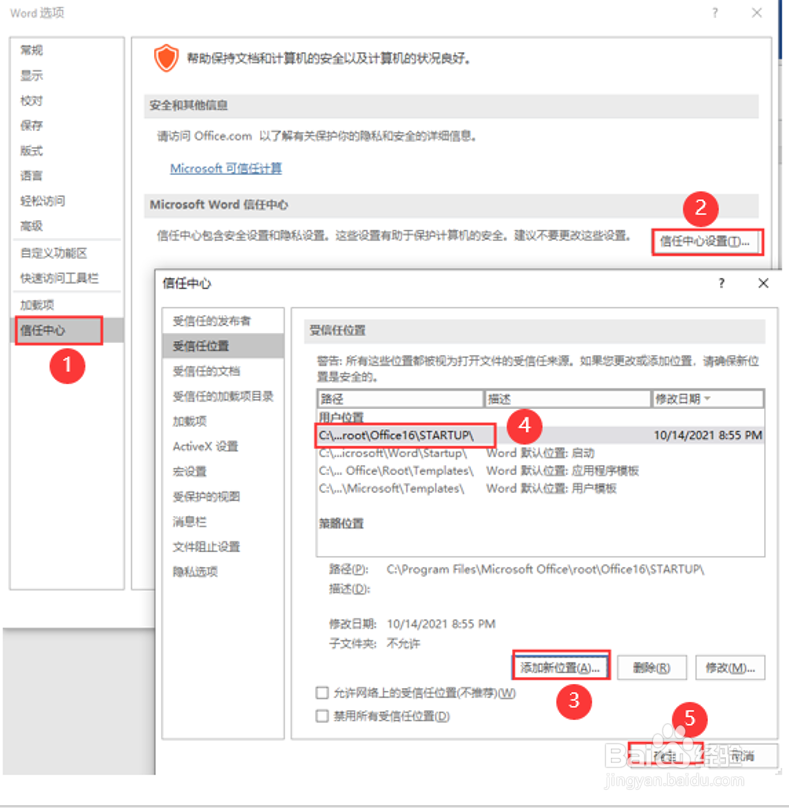
8、重启Word,即可正常复制粘贴
