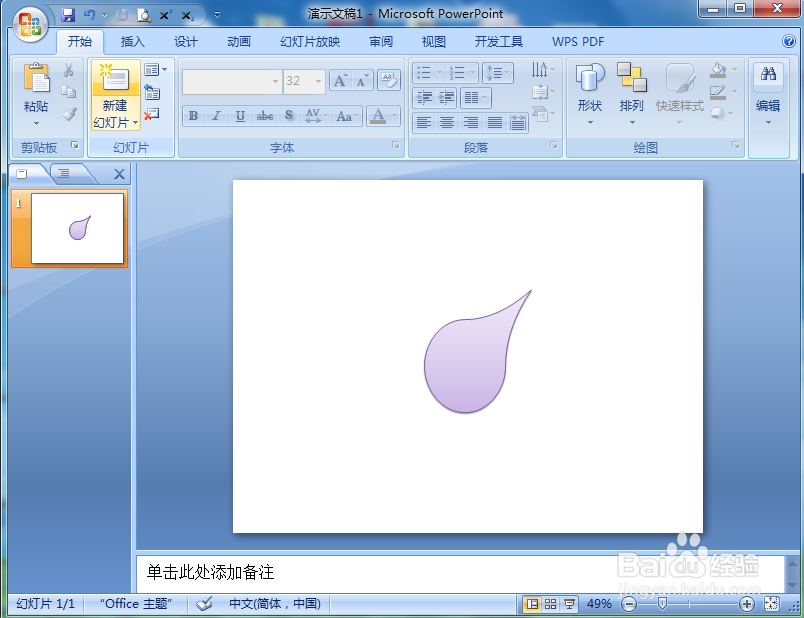
在Powerpoint中创建泪滴形的方法

 时间:2026-02-16 03:00:19

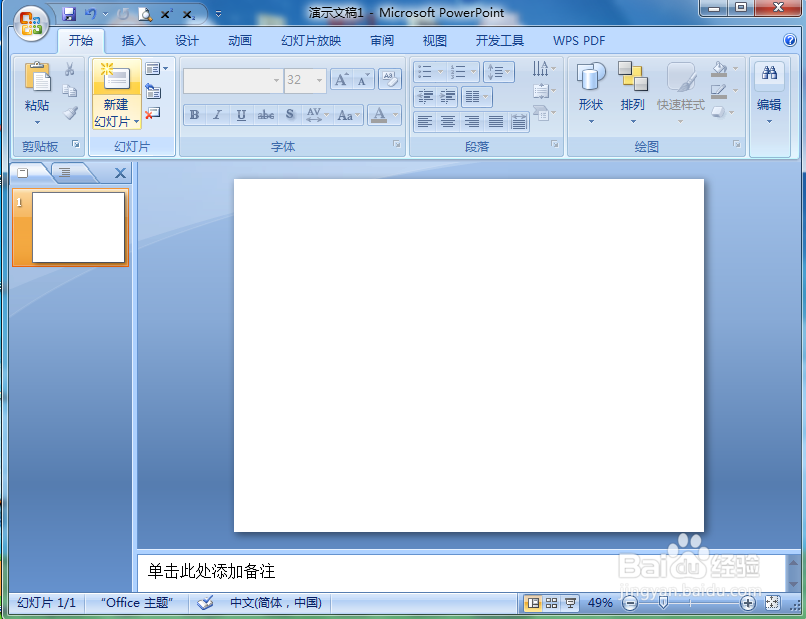
1、打开powerpoint 2007,进入其主界面;

在Powerpoint中创建泪滴形的方法

2、将单击此处添加标题和副标题两个输入框删除;

在Powerpoint中创建泪滴形的方法

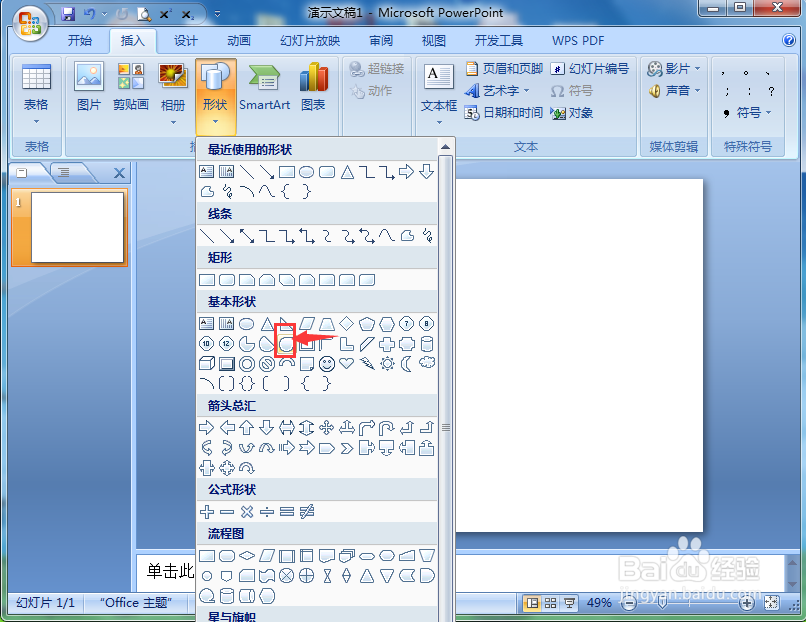
3、点击插入菜单,选择形状工具;

在Powerpoint中创建泪滴形的方法

4、在基本形状点击泪滴形;

在Powerpoint中创建泪滴形的方法

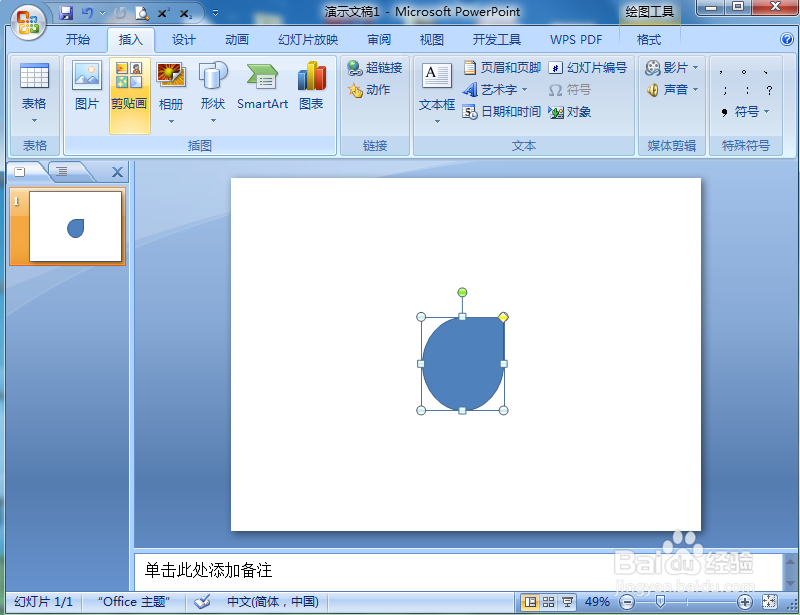
5、在空白页面单击鼠标左键,出现一个泪滴形;

在Powerpoint中创建泪滴形的方法

6、用鼠标拖动右下角的圆形句柄,调整好泪滴形的大小;

在Powerpoint中创建泪滴形的方法

7、用鼠标拖动黄色的菱形,调整好泪滴形右上角顶端的形状;

在Powerpoint中创建泪滴形的方法

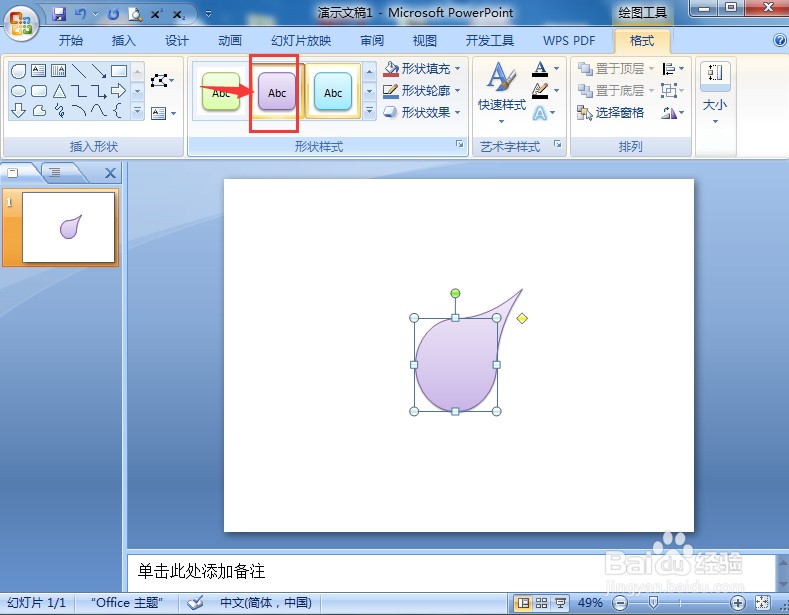
8、添加一种形状新式;

在Powerpoint中创建泪滴形的方法

9、我们就在powerpoint2007中创建好了一个泪滴形。

在Powerpoint中创建泪滴形的方法

1、打开powerpoint,点击插入,选择形状工具;

2、在基本形状中点击泪滴形,单击鼠标左键,画出一个泪滴形;

3、调整泪滴形的大小、形状和样式。

  • 怎样在powerpoint中创建折角形
  • 如何在PowerPoint中创建组织结构图
  • 怎样在powerpoint中创建层次结构图
  • 怎样在Powerpoint中创建分叉箭头
  • 如何在Powerpoint中创建射线维恩图
  • 热门搜索
    菱形脸发型 betty怎么读 哭笑不得的近义词 闭嘴英语怎么说 脚气病怎么治 脸胖适合什么发型 孔庙和国子监博物馆 云南省博物馆 中华车怎么样 电脑怎么上锁